6 AI Summary Modes Explained: Which One Should You Use?
TL;DR: PageSum has 6 summary modes — Quick, Detailed, Key Points, ELI5, ELI10, and One-Liner. Quick is for triage, Detailed for deep understanding, Key Points for notes, ELI5/ELI10 for simplifying jargon, and One-Liner for recall. Start with Key Points if you're unsure.
Most people do not need "an AI summary." They need the right kind of summary for the task in front of them. A short overview is great for triage and weak for study. A detailed breakdown is useful for research and excessive when you only want the gist.
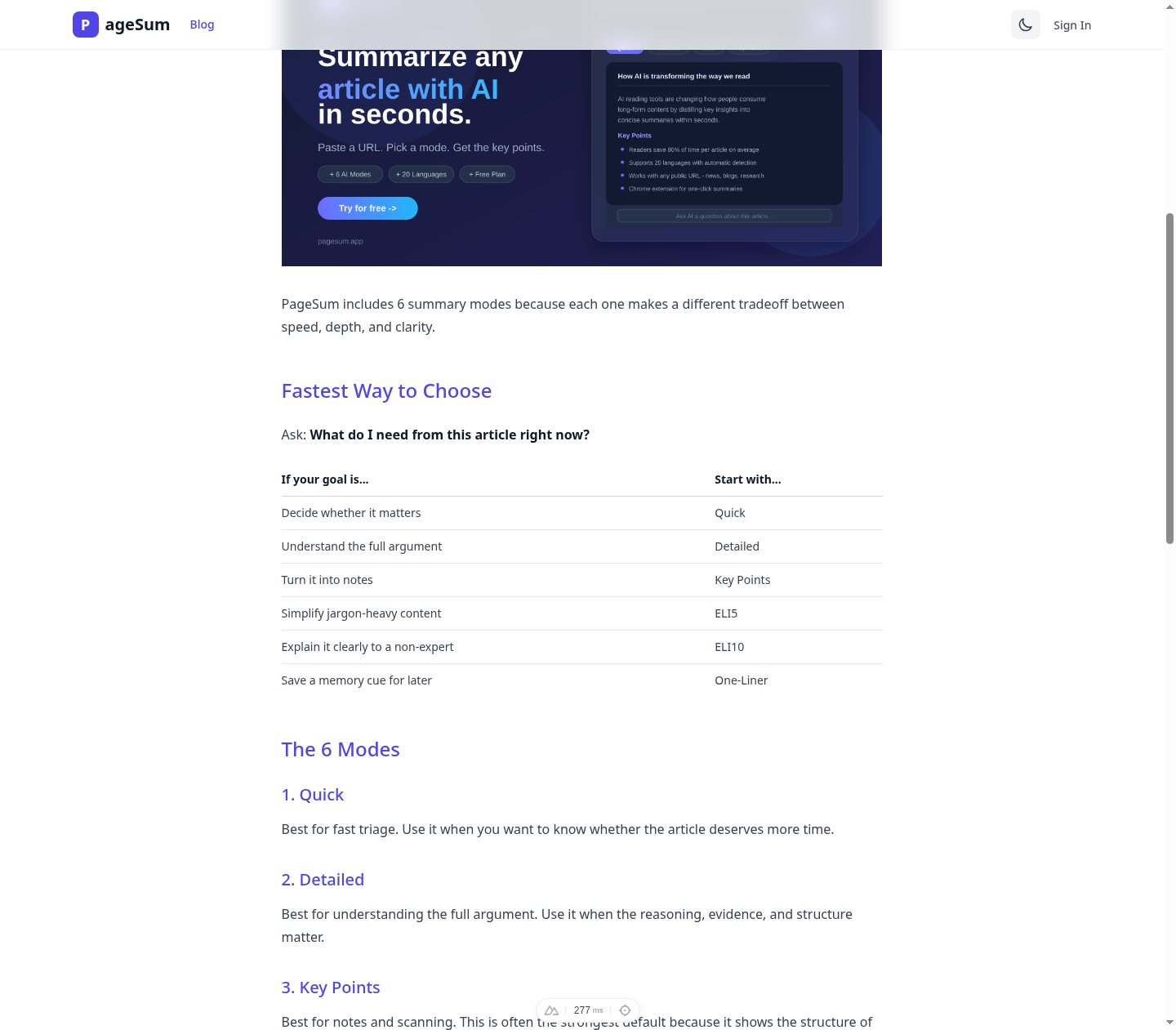
PageSum includes 6 summary modes because each one makes a different tradeoff between speed, depth, and clarity.
Fastest Way to Choose
Ask: What do I need from this article right now?
| If your goal is... | Start with... |
|---|---|
| Decide whether it matters | Quick |
| Understand the full argument | Detailed |
| Turn it into notes | Key Points |
| Simplify jargon-heavy content | ELI5 |
| Explain it clearly to a non-expert | ELI10 |
| Save a memory cue for later | One-Liner |
The 6 Modes
1. Quick
Best for fast triage. Use it when you want to know whether the article deserves more time.
2. Detailed
Best for understanding the full argument. Use it when the reasoning, evidence, and structure matter.
3. Key Points
Best for notes and scanning. This is often the strongest default because it shows the structure of the article quickly.
4. ELI5
Best for unfamiliar or technical topics. It simplifies aggressively, which makes it useful for orientation but weaker for precision.
5. ELI10
Best for clear, readable explanations with more nuance than ELI5. Good for smart non-experts and cross-functional teams.
6. One-Liner
Best for labeling and recall. It is not complete; it is a memory cue.
One Article, Different Outputs
Imagine a long article about a new workplace AI law:
- Quick gives the main claim.
- Detailed keeps the logic and tradeoffs.
- Key Points turns it into working notes.
- ELI5 strips out legal jargon.
- ELI10 keeps clarity with more nuance.
- One-Liner gives you one sentence to remember it later.
That is why the right mode is not about article length alone. It is about your reading goal.
Common Mistakes
- Using Detailed when you only need triage
- Using ELI5 when exact wording matters
- Assuming shorter is always better
- Expecting one mode to fit every article
Simple Recommendation
If you are unsure where to start:
- Use Key Points first.
- Switch to Detailed if the article looks important.
- Use ELI5 or ELI10 if the topic is denser than expected.
- Save a One-Liner if you want to remember the article later.
If you want to compare the modes on your own reading workflow, PageSum lets you run the same article through all six and see which output is actually useful.
To see these modes in action on a real workflow, read How to Summarize Any Article Online in Seconds or How to Summarize a PDF for Free. You can also access all six modes directly from the PageSum Chrome extension. All 6 modes also work on video files — see How to Summarize Video Files with AI.
More posts
Artikel, URLs, PDFs und Videos zusammenfassen — mit KI in Sekunden
Mit PageSum fasst du Artikel-URLs, PDFs und Video-Dateien in Sekunden per KI zusammen. Format wählen, Inhalt eingeben oder hochladen — die KI erledigt den Rest.
5 Best Video Summarizer Tools in 2026 (Free & Paid)
Comparing the best AI video summarizer tools in 2026: PageSum, Summarize.tech, NoteGPT, Notta, and Kagi. Honest breakdown of features, limits, and which one is actually worth using.
How to Summarize Video Files with AI
Upload any video file to PageSum and get an instant AI-generated summary of the audio in seconds. No transcription copy-paste required.
Pagesum is Live on Product Hunt: AI Summarization for Everyone
We are officially launching Pagesum on Product Hunt! Discover how our 6 AI summary modes and Chrome extension help you read less and do more.
How to Summarize an Article for Me (Free AI Tool)
Looking for a tool that can summarize an article for you? Paste any URL into PageSum and get an instant AI summary in seconds — free, no signup required to try.
PageSum Chrome Extension: Summarize Any Page in One Click
Install the PageSum Chrome extension and get instant AI summaries on any webpage without switching tabs. Works on articles, blogs, news, and more.
How to Summarize Any Article Online in Seconds
Learn how to summarize articles online with AI, choose the right summary style, and know when to trust the summary versus reading the full piece.
How to Summarize a PDF for Free (Without Copy-Pasting)
Summarize any PDF online for free. Drag, drop, and get an instant AI summary — no copy-pasting required. Works with research papers, reports, and ebooks.