PageSum Chrome Extension: Summarize Any Page in One Click
TL;DR: Install the PageSum Chrome extension, click the toolbar icon on any page, and get an AI summary in a sidebar — no tab switching. You can also right-click selected text to summarize a passage, or right-click any link to summarize it before opening.
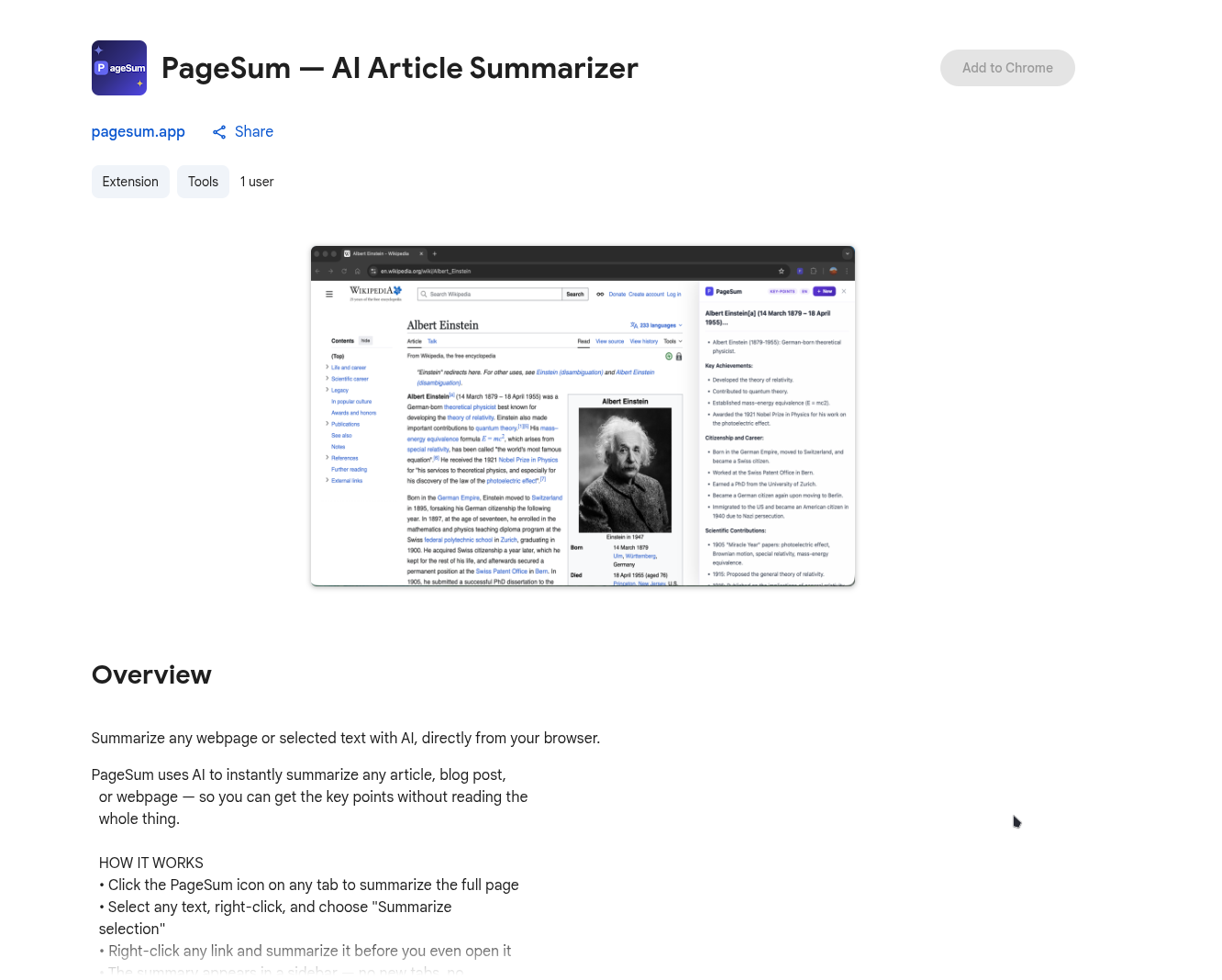
Switching between tabs to summarize something you're already reading is friction you shouldn't have to deal with. The PageSum Chrome extension puts AI summaries directly in your browser — click the toolbar icon and a summary sidebar opens on the current page, no tab switching needed.
How to Install
- Open the PageSum extension on the Chrome Web Store
- Click Add to Chrome
- Pin the extension to your toolbar for quick access (click the puzzle piece icon → pin PageSum)
That's it. No configuration required.
How It Works
The extension gives you three ways to summarize content:
Toolbar icon — Click the PageSum icon on any tab to summarize the full page. A sidebar opens on the right with your summary.
Right-click on selected text — Highlight any passage, right-click, and choose "Summarize selection" to get a focused summary of just that section.
Right-click on a link — Right-click any link and summarize the target page before you even open it. Useful for deciding whether an article is worth reading without navigating away.
Which Mode to Use
All six summary modes are available in the sidebar:
| If you want to... | Use |
|---|---|
| Quickly decide if the article matters | Quick |
| Understand the full argument | Detailed |
| Turn it into notes | Key Points |
| Cut through jargon | ELI5 |
| Get a clear, nuanced explanation | ELI10 |
| Remember it with one sentence | One-Liner |
If you're unsure, Key Points is a reliable default — it shows the structure of the article fast.
For a full explanation of what each mode does, see 6 AI Summary Modes Explained.
What It's Good For
News triage. Skim a dozen headlines and summaries without opening each article in a new tab.
Research. When evaluating sources, get the gist before deciding whether to read the full piece.
Long reads. Use Detailed mode to get a full breakdown before committing to a 20-minute article.
Explaining something to a colleague. ELI10 gives you a clean, plain-language version you can share or paraphrase.
Extension vs. Web App
Both use the same AI and support all six modes. The difference is where you use them:
- Extension — best when you're already on the page and want a summary without context-switching
- Web app — best when you have a URL to paste, want to upload a PDF, or want to chat with the content after summarizing
For PDF summarization in particular, the web app is the better tool — see How to Summarize a PDF for Free.
Free Plan
The extension uses your PageSum account. The free plan includes 3 summaries per day across both the extension and the web app combined. PageSum is free to start — no credit card required.
For PDF summarization or video files, the web app is the better tool — see How to Summarize a PDF for Free or How to Summarize Video Files with AI.
More posts
Artikel, URLs, PDFs und Videos zusammenfassen — mit KI in Sekunden
Mit PageSum fasst du Artikel-URLs, PDFs und Video-Dateien in Sekunden per KI zusammen. Format wählen, Inhalt eingeben oder hochladen — die KI erledigt den Rest.
5 Best Video Summarizer Tools in 2026 (Free & Paid)
Comparing the best AI video summarizer tools in 2026: PageSum, Summarize.tech, NoteGPT, Notta, and Kagi. Honest breakdown of features, limits, and which one is actually worth using.
How to Summarize Video Files with AI
Upload any video file to PageSum and get an instant AI-generated summary of the audio in seconds. No transcription copy-paste required.
Pagesum is Live on Product Hunt: AI Summarization for Everyone
We are officially launching Pagesum on Product Hunt! Discover how our 6 AI summary modes and Chrome extension help you read less and do more.
How to Summarize an Article for Me (Free AI Tool)
Looking for a tool that can summarize an article for you? Paste any URL into PageSum and get an instant AI summary in seconds — free, no signup required to try.
6 AI Summary Modes Explained: Which One Should You Use?
Compare Quick, Detailed, Key Points, ELI5, ELI10, and One-Liner summary modes to see which one fits your reading goal, not just the article length.
How to Summarize Any Article Online in Seconds
Learn how to summarize articles online with AI, choose the right summary style, and know when to trust the summary versus reading the full piece.
How to Summarize a PDF for Free (Without Copy-Pasting)
Summarize any PDF online for free. Drag, drop, and get an instant AI summary — no copy-pasting required. Works with research papers, reports, and ebooks.